
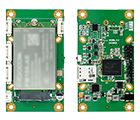
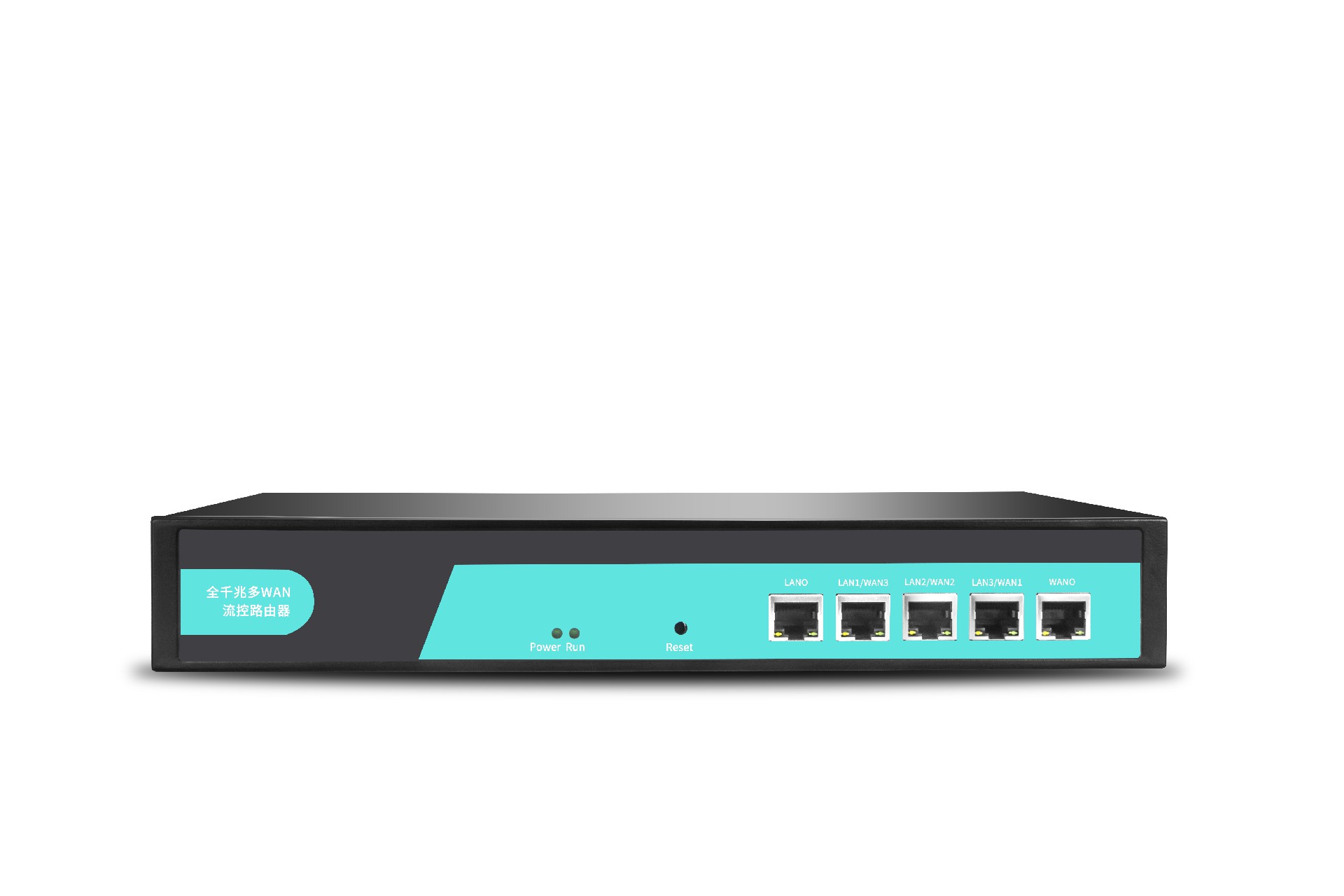







How does a router connect devices?
How does a router connect devices?
Interface
You can connect your computer to your router by following these steps.
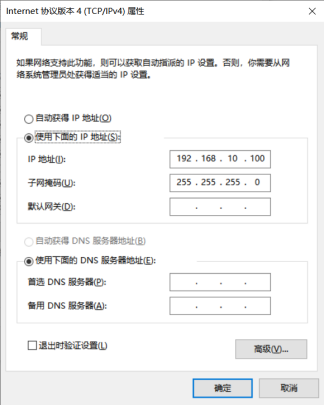
Set the computer's IP address
Before accessing the Web setup page, it is recommended that you configure your computer to "Automatic IP Address" and "Automatic DNS Server Address," so that the router can automatically assign an IP address to the computer. If you need to assign a static IP address to the computer, ensure that the computer's IP address and the router's LAN port IP address are set within the same subnet (the default IP address for the router's LAN port is 192.168.10.1, and the subnet mask is 255.255.255.0).
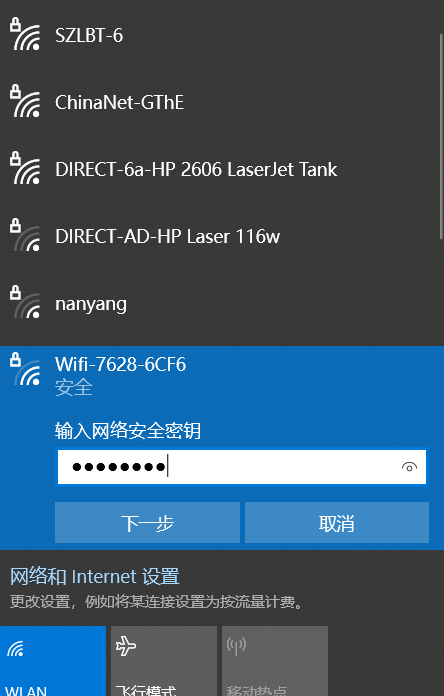
Connect via WiFi
Check the wireless router's network connection, then click the' Connect' button to establish the connection; the wireless password is: 12345678.
Verify that the computer is connected to the router.
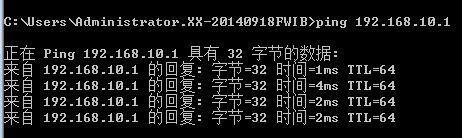
Once your computer displays "Successfully obtained an IP address," use the Ping command to verify whether successful connectivity has been established between the computer and the router.
For example, in a Windows 10 environment, execute the Ping command: Ping 192.168.10.1
If the screen displays as shown below, it indicates that the computer has successfully established a connection with the router.
Log in to the router
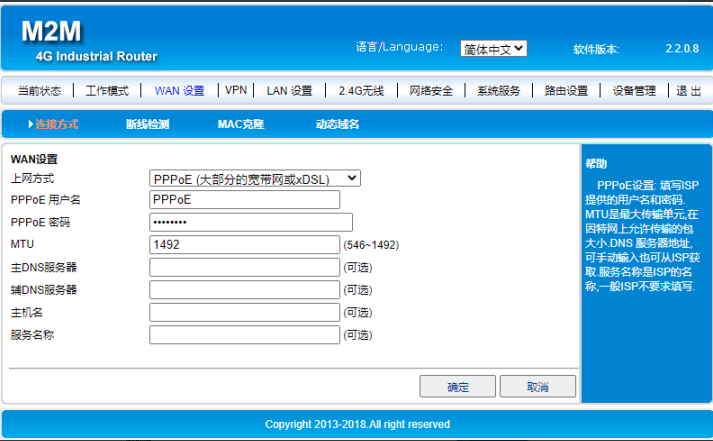
Next, you will access the router's web configuration page.
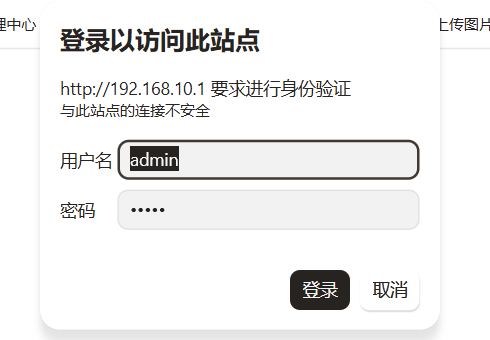
Enter "http://192.168.10.1" in the Web browser's address bar, then enter your login username and password in the pop-up dialog box.
For your first login, please use the default username: admin and password: admin.
Access the router's web configuration page
After logging in successfully, navigate to the Web Settings page; from here, you can configure and manage your router.